

Groups and Custom Groups
Groups
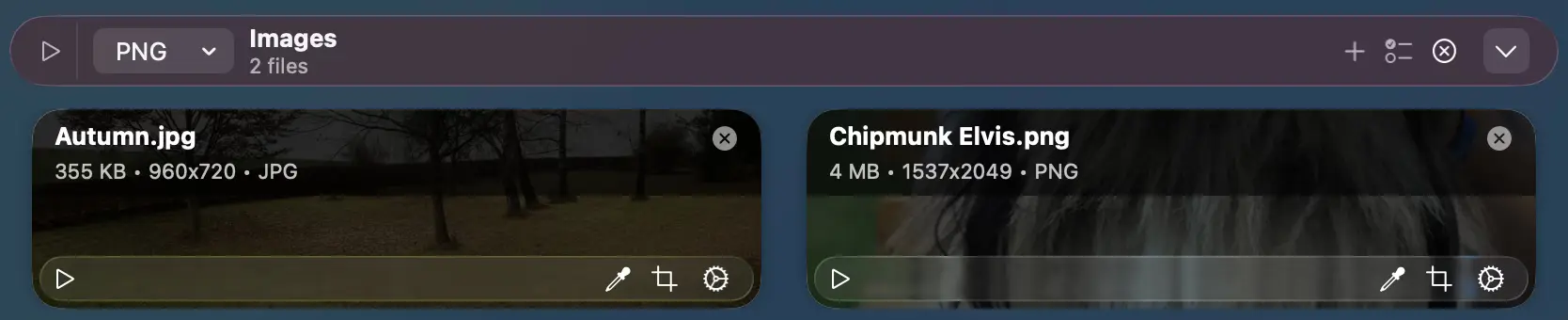
As mentioned in Getting Started, files in Permute get sorted into groups. Each group has a header which contains multiple controls. Here is a list of them left to right:
- if the group contains files that haven’t been converted yet, there’s a __start button__ that allows you to start conversion for the entire group.
- if the group allows preset selection, there’s a preset menu where you can select the preset that will be used for converting files within the group. See Settings > Presets for more information. Note that some special conversions disallow preset selection (for example, combining audio with an image into video).
- name of the group - you can change it by double-clicking on the name of the group, or using the edit button that appears when you hover your mouse over it. The name is mainly for you, it does not affect the conversions.
+button for adding files directly into the group- options button for customizing the conversions (see Group Customizations below)
- clear menu for both clearing conversions that are finished and removing all files from the group in case you no longer wish to make the conversions
- collapse toggle that allows you to hide the contents of the group for better management
Group Customizations
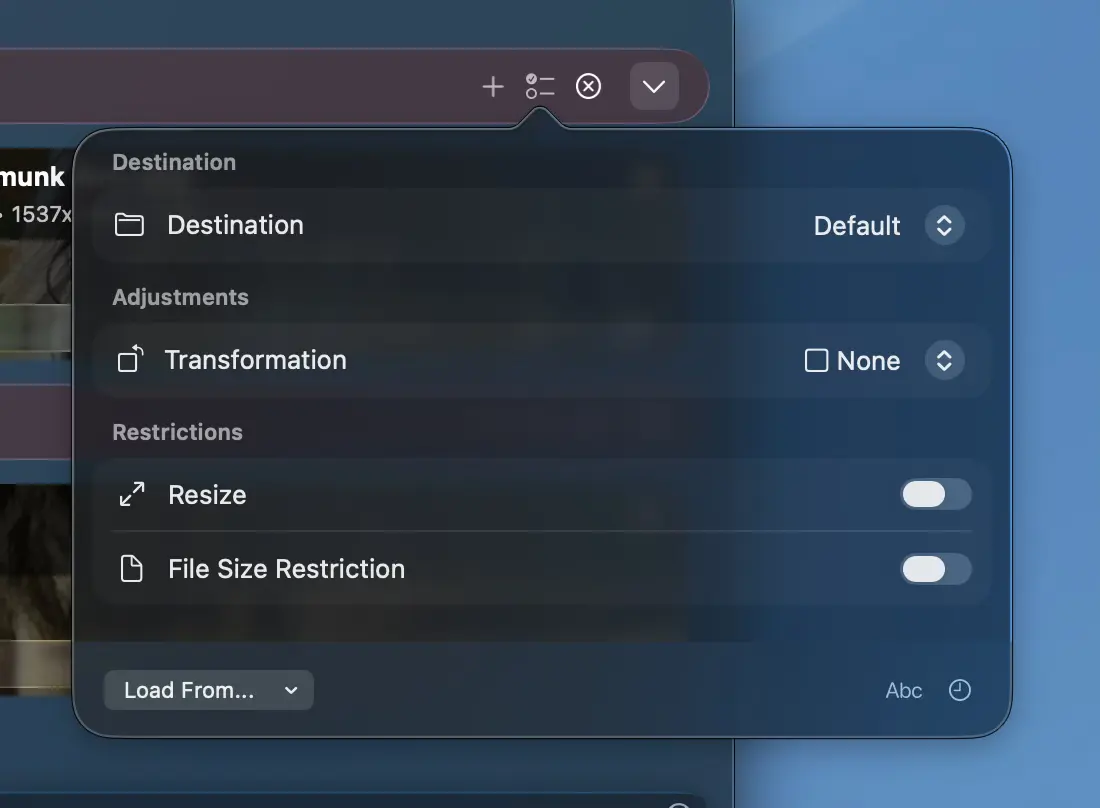
Depending on the context (files in the group and selected preset), Permute offers various customization options that allow you to customize the conversion without adjusting Permute’s settings or the preset itself. Let’s list some of the main adjustments below.
- destination - you can set a custom destination for the entire group that differs from what is set in Settings
- stitching - this option allows you to combine multiple files together. For example, multiple smaller videos into one long video. The stitching option also has additional suboptions like the stitched file name (name of the resulting file), option to generate chapters (video and audio only) at the time of individual files and to disable optimized stitching (forcing re-encode).
- bitrates - this option allows you to set custom bitrate for the conversion. Only applicable for audio and video.
- audio adjustment - allows you to make the audio track louder or quieter
- speed adjustment - allows you to speed up or slow down the video/audio
- transformation - allows you to rotate or flip video/images
- resize - allows you to set size constraints on the video/image
- file size restriction - for videos/audio this adjusts the bitrate based on the file’s duration, for images this will keep resizing the image down until the desired size is achieved
There are also additional actions available below these options:
- you can load the options from a custom group (see below)
- you can sort the files in the group by name with a single click
- you can schedule the start of the group for later (see Scheduled Start for more information)
Custom Groups
Custom groups are pre-defined groups that you can manage in Settings > Custom Groups. Very simply put, a custom group is a saved set of the group customization options described above.
The best way to explain this may be to use an example. Let’s say that in my workflow I need to resize a folder full of images to different sizes. One way to go would be to create a bunch of presets - for example JPEG 1080p, JPEG 720p and use those. This would work well in case you only needed JPEGs. But for different jobs, you may need different formats, e.g. WebP or PNG.
So you define custom groups - 1080p and 720p. Instead of setting the size restriction on the preset, you set it here. Now you can set any preset and the size restriction will be applied.
To apply the custom group, there are multiple options:
- use the
Load From…menu in the group’s customizations popover (as described above) - drag and drop - when you drag files over the main window, there’s a
Drop here to customizebubble. See Advanced Tips help article for more information. - drop zones - these are for automated drag and drop conversions. See the relevant help article for more information.