

Drop Zones
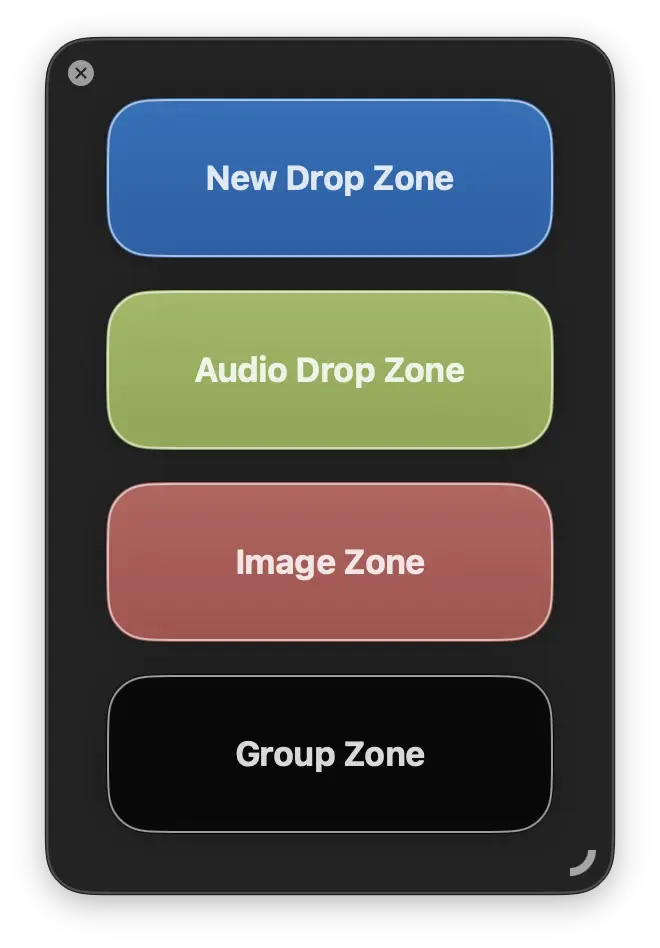
Drop Zones are a floating window that you can open via Window > Show Drop Zones in the menu bar. When you drop files into these zones, they get converted automatically without any confirmations. This allows for a very quick workflow with unnecessary interruptions.
You can have as many drop zones as you want and you can adjust the window any way you like - you can drag it into a single column, single row, or a grid formation. The colors are customizable. You can create them in Settings > Drop Zones. There are two types of drop zones.
Preset-based Drop Zones
You can assign one or more presets to the drop zone. When you drop the files onto the drop zone, a group will be created for every preset enabled, files will be added into these groups and conversions will automatically start.
Custom Group Zones
Similarly as with presets, you can select one or more custom groups to be associated with a drop zone. It works in similar manner as with the presets.
See alsoCustom Groups