
Advanced Tips
Customized Drop
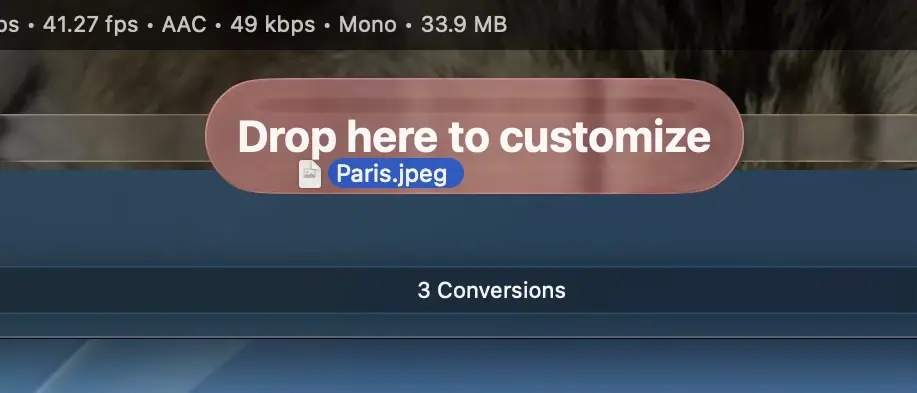
When you drag files over the main window a “Drop here to customize” bubble appears. When you drop the file there instead of anywhere else in the window, you get multiple options.
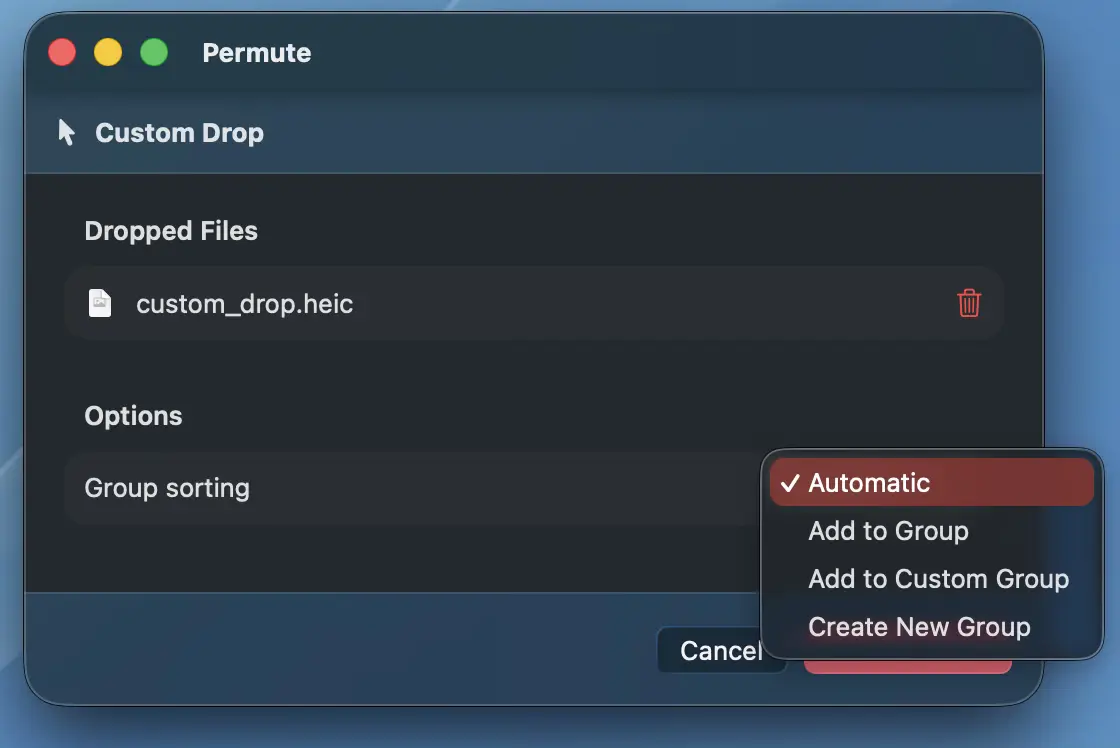
Firstly, you get an option to review the dropped files and remove any if you change your mind. Secondly, you get to decide how the files should get sorted.
- Automatic - this is the default behavior, Permute will sort the files based on their type into video, audio, …
- Add to Group - if there are already some files in the queue, you can force Permute to add the files into any of the existing groups
- Add to Custom Group - if you have Custom Groups defined, you can select one here
- Create New Group - creates a new group with specified name and adds the files there, allowing quick option for stitching.
Copy Quality Option
For video and audio preset, under video or audio quality, there’s an option Copy. Please note that this is a very advanced option that you should be using only in very rare situations. This option causes Permute to copy the track. If the target container does not support the input file’s video/audio track, the conversion will fail.
By default, Permute already does analyze the input file and it will copy compatible tracks without modification. This option bypasses Permute’s analyzation of whether the tracks are compatible and overrides it. This is very rarely needed.
Creating Video-Only Preset
If you want a preset that only contains video and no audio, go to Settings > Presets, click on the Add preset button, under type select Custom and then under Audio Format select No Audio.