

Editing
When Permute processes a file and adds it into the queue, there are some way that you may alter the file before running a conversion.
Cropping
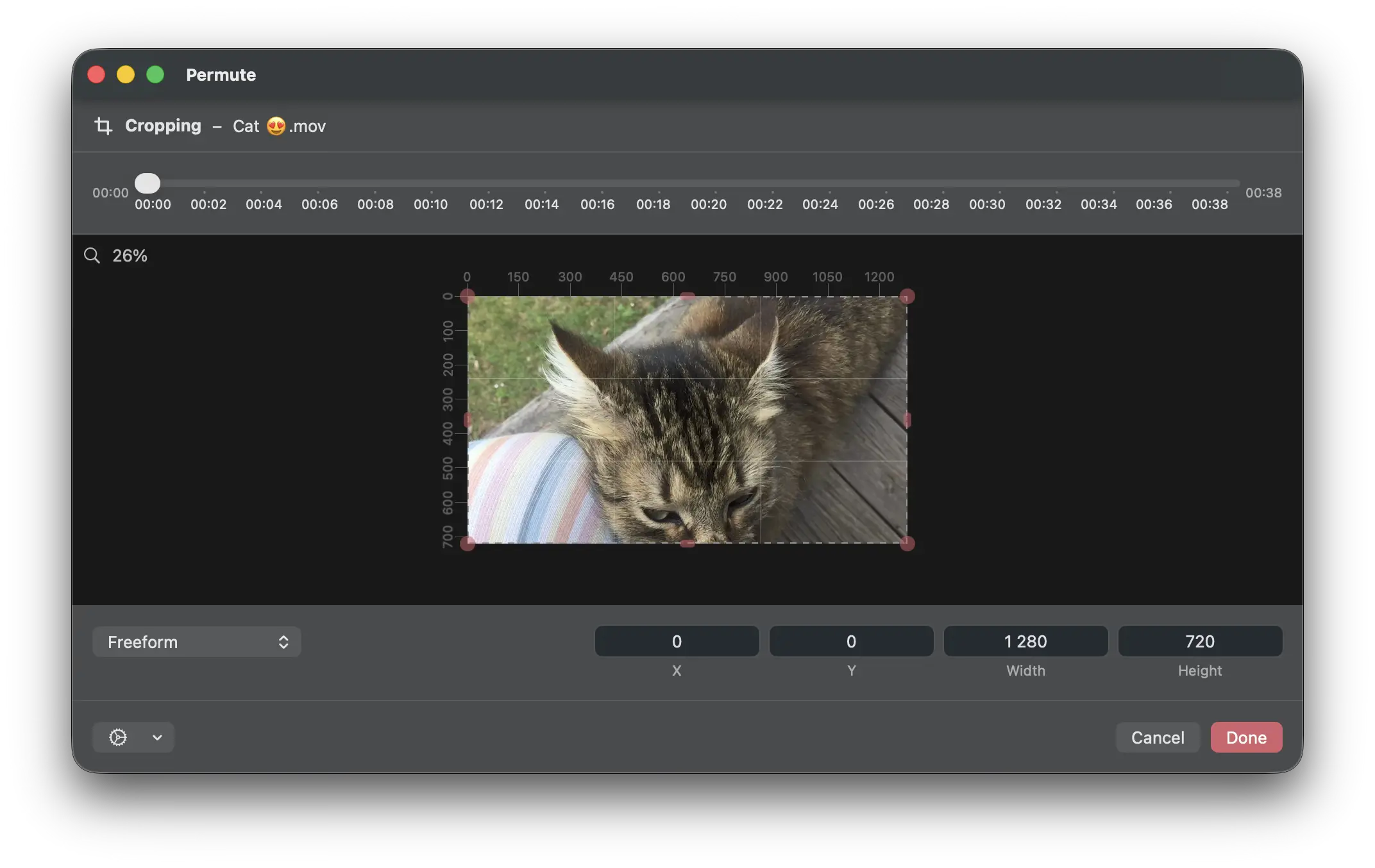
For video and audio, Permute allows you to crop video and images. For video, at the top of the crop screen, there’s a timeline where you can preview the crop at different times of the video.
Then there’s the actual crop view where you see the preview and can drag the crop area using corner and side handles. Permute also shows pixel marks above and on the left of the crop area.
Below that you can find an option to keep an aspect ratio of the crop as well as the actual crop values for fine tuning. Additionally, there’s an actions menu that allows you to:
- autodetect crop area - this is for automatically detecting letter box. If the video has no letter box, nothing will happen.
- apply to the entire group - if you have multiple files of the same size in the group, you can apply the grop to all of them using this option.
- manage saved sizes. If you commonly use a specific crop, set it up and select the option to save the crop. There’s also an option to manage crops that allows you to re-order and delete saved crops.
Trimming
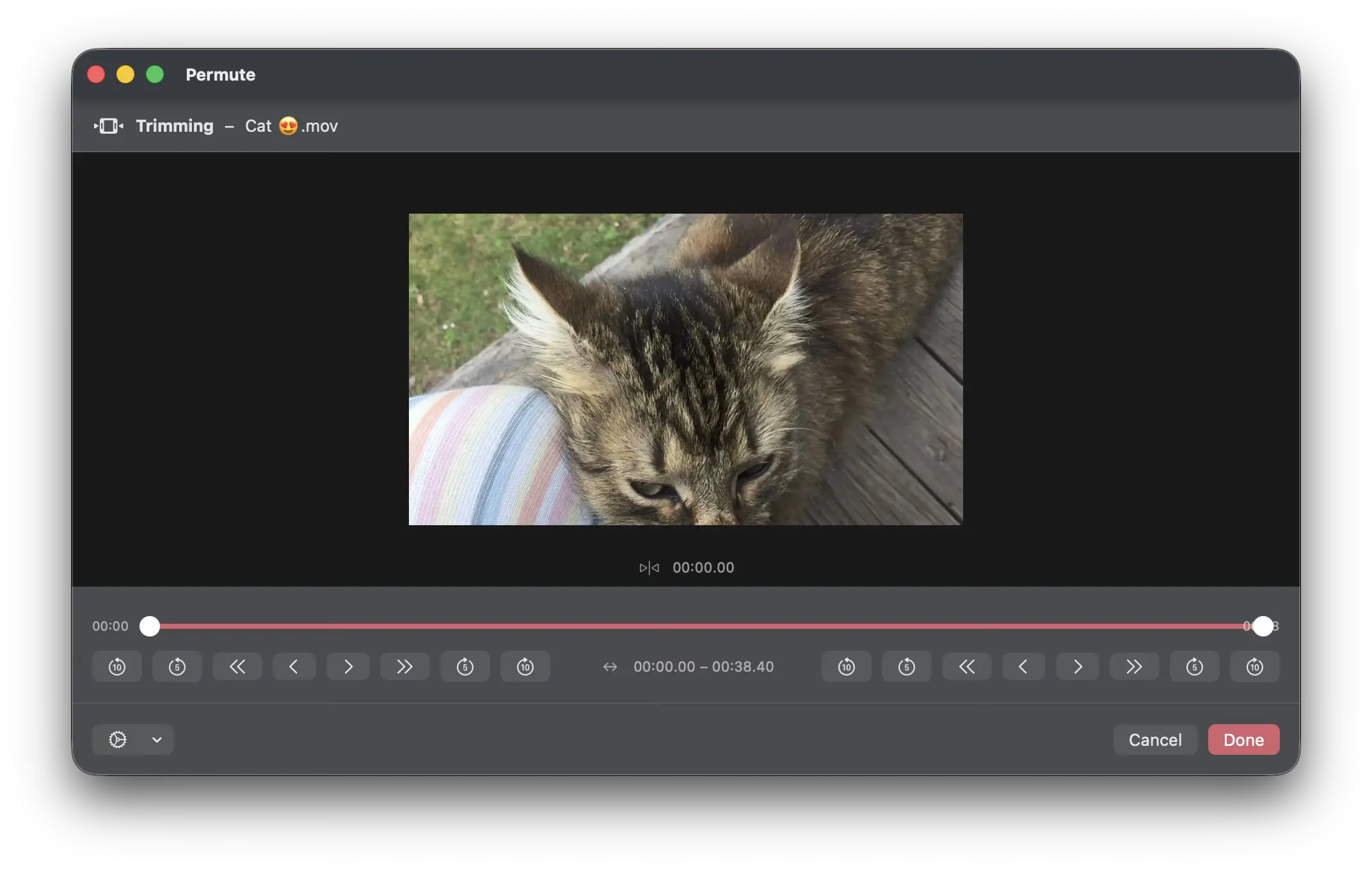
You can also only select a section of the video or audio. For audio, Permute will show a waveform. Below the preview, there’s several controls on each side that allow you to adjust the time by 10 seconds, 5 seconds, 1 second and 0.1 second in either direction. As with crop, you can apply the trim to the entire group, assuming that the files have the same length.
Audio Tracks
For video files, there’s an Audio button that allows you to manage audio tracks. You can:
- enable/disable them
- set title of the audio track
- set language of the audio track
- set dispositions for the track (e.g. that it’s audio description, dubbed, commentary, etc.)
- add audio tracks from external sources (audio files)
Subtitles
Similar to audio tracks, for video files, there’s a Subtitles button that allows you to manage subtitle tracks. You can:
- enable/disable them
- add subtitle tracks from external sources (
.srt,.ass, …) - set title of the track
- set language of the track
- set dispositions of the track (e.g. hearing impaired, etc.)
- for external subtitles you can set encoding and delay
Color Replacement
For images, you can apply a color replacement. This will take a color in the image and replace it with another one. You can also replace colors in a video, but you will need to use the Color Replacement preset for that which uses ProRes format as there aren’t many video formats that support alpha channels.