

Getting Started
What is Permute?
Permute is a powerful application for converting files - from one format into another. This includes video, audio, images, but also text and PDF. For many of those formats this also includes support for cropping or trimming the content and other advanced feautres.
Some examples of such conversions may be converting video from old formats like AVI (DivX) to more modern formats like MP4 (H.264 or H.265). Or HEIC images to something more compatible like JPEG. Or converting text into audio. Or images into text. This all can be done with just a few clicks.
Using Permute - Basics
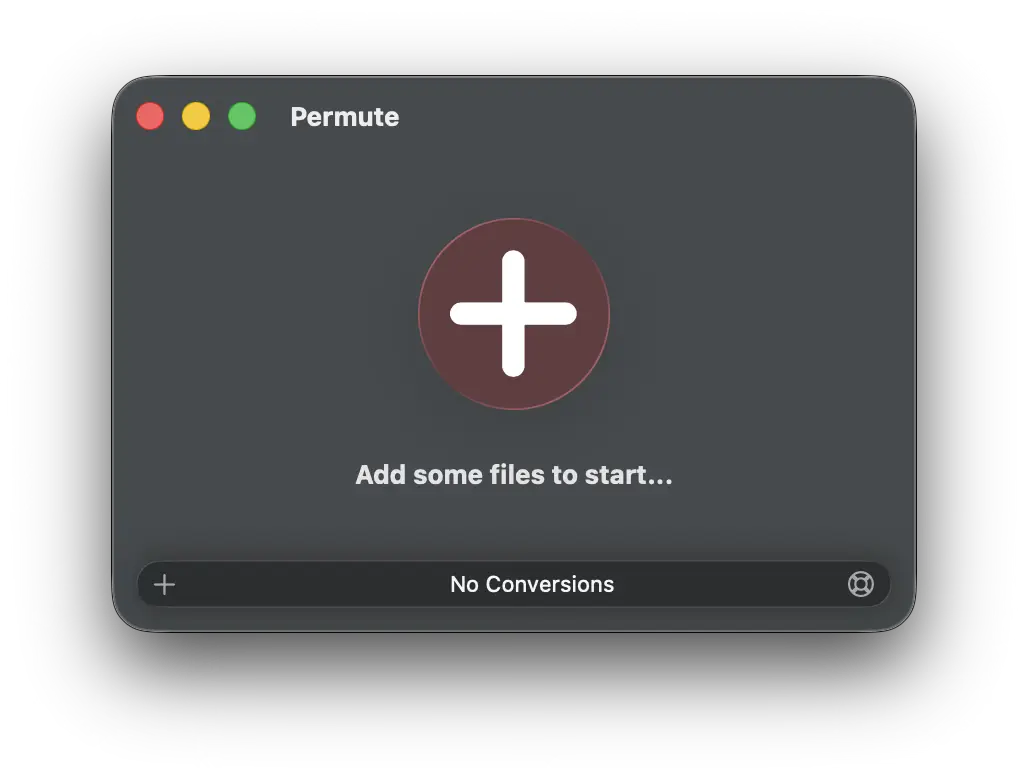
When you open Permute, you will see a simple window, prompting you to add some files. This can be done in numerous ways:
- click on the big “plus” button in the middle of the window
- use
File > Open…in the menu bar - there is a plus button in the main window’s status bar
- use drag and drop from Finder or other apps onto Permute’s Dock icon, or main window
- use copy-paste - just press ⌘-V in the main window to paste files from pasteboard
- use Drop Zones. See Drop Zones help article for more information
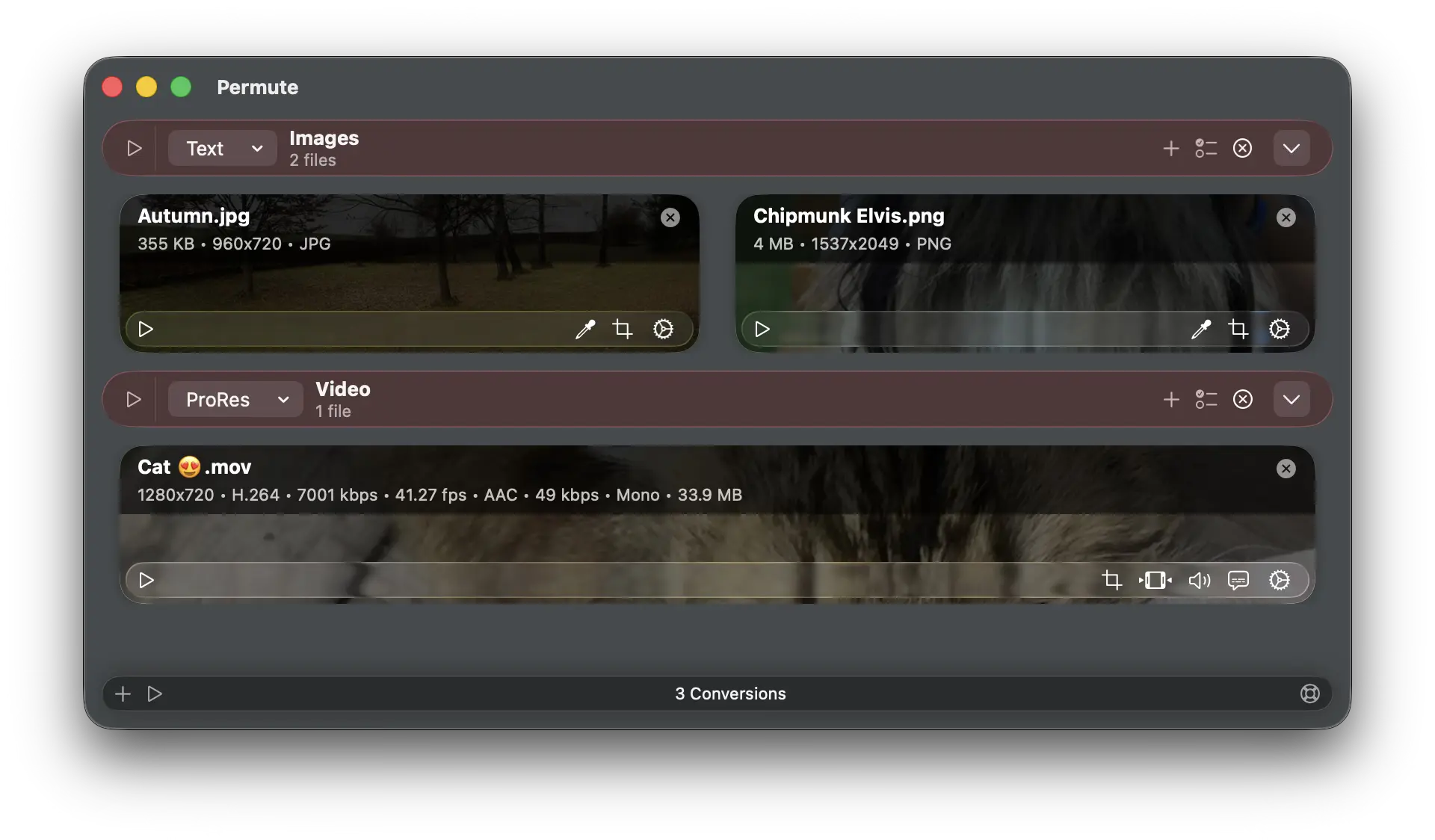
Once you add some files that you want converted, they will be listed in Permute’s main window. The files are sorted into groups. By default, Permute will sort the files into groups by their type (video, audio, images, …), but you can also create your own groups and move the files between groups.
Groups allow you to apply a conversion of certain type on multiple files at once. Anything that you adjust for the group will be applied to all the files within the group. See the help article for Groups for more information.
See alsoGroups and Custom GroupsNow review the conversion parameters. In the group header, there is a menu with preset selection. Presets are pre-defined formats into which you can convert the files. Permute contains a lot of different formats and they are not all listed by default. You can modify the list of presets, add new ones and even create custom ones. See Settings > Presets.
The group header also contains other advanced options. These are described in the help article about groups.
See alsoPreset SettingsTo start the conversion, there are multiple options:
- use the start button in the group header. This starts conversions of the files in the group itself. The number of conversions performed at once can be limited in Settings.
- use the start button on the file itself. This will convert the file, but will not automatically convert any other files.
- use the start button in the main window’s status bar. This will start converting all files within the queue - i.e. in all the groups.
- use
File > Start Conversionsin the menu bar
That’s it! You’ve just performed your first conversion. See other help articles for more advanced usage. Remember, if you have any questions, there’s a Support button in the main window’s status bar that allows you to contact us with just a few clicks.