

User-Guided Extraction
The User Guided Extraction (UGE) is one of the most powerful Downie features. It allows you to download videos that Downie would otherwise be unable to detect on its own. For example, it is capable to detect videos that require a lot of calculations for retrieving the link, or it's capable of detecting embedded videos on various sites.
Usually, when Downie is unable to extract the video on its own, it offers you to load the link in UGE. If it doesn't, you can always enter UGE by selecting Browser > User-Guided Extraction… in the menu bar, or using the Open User-Guided Extraction button in the main window or the menubar popover.
How to use it?
Enter the web page address into the address bar and press Return. Downie will load the page in its browser and will display potential downloads in the right column. If you are not seeing the sidebar, it was collapsed - either uncollapse it or use the Downloads button in the toolbar to display them. To add a download into the download queue, press the + button on the right.
The User-Guided Extraction window also supports downloading images and subtitles. Those are available via buttons in the toolbar. When you click on the images button, you get a grid view with all the images. To download a single image, click on the download button in the image's bottom-right corner. To download all of the images, click on Download All. For subtitles, you get a menu with available subtitles. Selecting one downloads the file.
Options
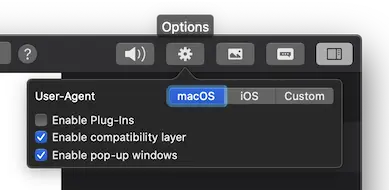
In the top-right corner, there is an options button (a cog wheel icon), where you can set a few things:
- mode - macOS, iOS and custom - for more advanced users, this is a User Agent field - i.e. it determines as what browser does the webpage see Downie. Both macOS and iOS modes imitate Safari
- compatibility layer - as some browsers have some browser-specific features that some sites may require, this setting attempts to simulate these features. You may try using this in case the video doesn't load in the browser or if you encounter some issues with the site.
- pop up windows - by default blocked, you can enable them here
- plug-ins - in macOS mode, you can enable or disable plug-ins - mainly Flash Player
Tips
Sometimes, even UGE doesn't detect the media content automatically or you get a lot of results and you don't know which to choose. Here are several tips:
- Use iOS mode. In the top-right corner, there is an options button (a cog wheel icon), where you can switch between macOS and iOS modes. The macOS mode allows plugins such as Flash Player and identifies itself as macOS. Switching to the iOS mode, the browser will act as an iOS device, disallowing the use of plugins and thus forcing HTML5-based playback.
- Look for Direct Downloader, HLS Stream or DASH Stream. Each result has two lines - the top one contains a preliminary name and the second one contains the type of the download. If the type says
Direct DownloaderorHLS Stream, it means that Downie has found a direct link to an MP4, FLV, M3U8, DASH, or other media file. - Make sure that you have the root manifest. In case of HLS Stream, it's possible that there will be several results, some resulting in either just audio or just video. If this happens, then there's also a master manifest that defines the relationship between these "submanifests". Please look through the other HLS Stream results - the root manifest is often called "master" or "index", but this very much depends on the website.
- Play the video. Some sites do not load the media file until you actually hit the play button. Since the UGE works by detecting media that the website loads, you may need to start playing the video. After all, this is why it's called User-Guided Extraction.