
Basic Overview
Drag & dropping links onto Downie can be very tedious, which is why Downie includes browser extensions for all major browsers out there. Each extension provides several new features for the browser. Extensions can be installed from the Settings.
Toolbar Button
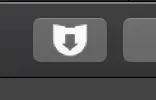
When you install the browser extension, a button gets added into the browser's toolbar that allows you to send the current page to Downie with a single click.
Note: Not all browsers need to automatically display the toolbar button - you may need to customize the browser's toolbar and add the button manually. Please see your browser's documentation.
Contextual Menu Item
When you right-click a link, you will get a menu item to send the link to Downie. Additionally, when you click wherever else on the webpage, you get menu items to send the current page to Downie with certain postprocessing enabled. This way can download some links as audio and some as video without modifying the global postprocessing settings.
Keyboard Shortcut
Alternatively, you can press Ctrl + Shift + D on a webpage to send it to Downie.
To open all tabs within a window in Downie, you can press Ctrl + Shift + Option + D on a webpage.