
Getting Started
Downie is a powerful application for downloading videos from all over the Internet, including YouTube, Vimeo, Bilibili, QQ, and so many more. You can view sites with explicit support in Settings.
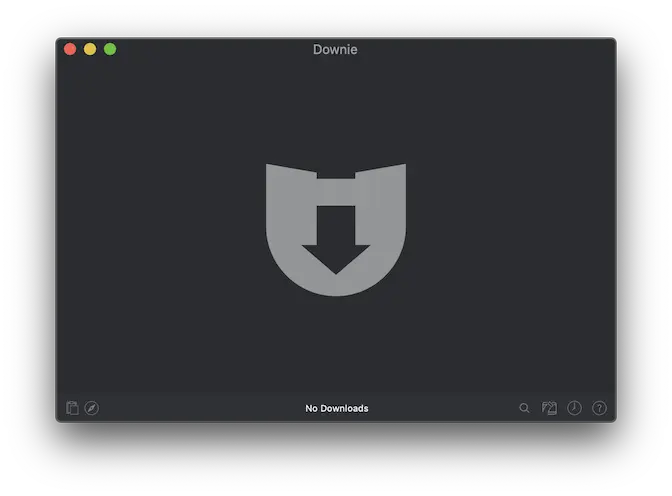
After opening Downie, you are presented with this main window. The main window in its initial state is empty and contains 2 major sections that are described below. Additionally, you are offered a menu bar icon which can be turned off in Settings > Appearance. You can also have Downie live only in the menu bar (without the Dock icon). This can also be adjusted in Settings > Appearance. The menu bar icon opens a popover which has similar functionality as the main window described below.
Downloading a video
To download a video, you need to add a link to that video to Downie's queue. There are several ways of doing so.
The recommended way is to install a Browser Extension into your browser. This will install a button into the toolbar of your browser and whenever you want to download a video at the page you're currently on, you can just click on that button and it's added into Downie. There are more features in the extensions - please see the Browser Extension help for more information.
If you do not wish to install the browser extension, or your browser is not supported, there are several other ways to deliver the link to Downie:
- Drag & drop a link from a browser (or any other app for that matter) onto Downie's main window, Dock icon or the menu bar icon.
- In Downie, select
File > Open URLs…. You can paste link (or multiple links) into the text area and let Downie work its magic. - While the main window is active, press
Command-V(⌘-V) to load links that are in your clipboard. - Click on the + icon in the main window or in the menu bar popover to load links in your clipboard.
After adding the link, Downie will start processing it. Initially, the loading will be indicated using a Loading... text in the top-right corner of the window or by pulsating menu bar icon. As Downie discovers new links, they get added immediately into the queue and get displayed in the main window and in the menu bar.
Status Bar
At the bottom of the window, there is a status bar. In the middle, Downie displays statistics about downloads and on the left and right, it displays several buttons:
- Add - Loads any links that may be in your pasteboard or opens the open dialog in case there are none.
- Open User-Guided Extraction - Opens the User-Guided Extraction window.
- Search and Top Downloads - Search for video on YouTube, Vimeo and others right from within the app. You can also view downloads that others are downloading.
- Clear Finished Downloads - Remove finished downloads with a single click. See the File menu in the menu bar for additional clearing commands.
- History - View content that you have previously downloaded.
- Support - You can always contact us, report an issue with downloading a video or request support for a new site. For more information see Reporting Issues.